Text area
필드 내부에 2줄 이상의 텍스트를 입력할 때 사용하며 Heading, Placeholder, Description등의 요소를 활용하여 사용자가 입력할 내용의 형식을 보다 명확하게 안내합니다.
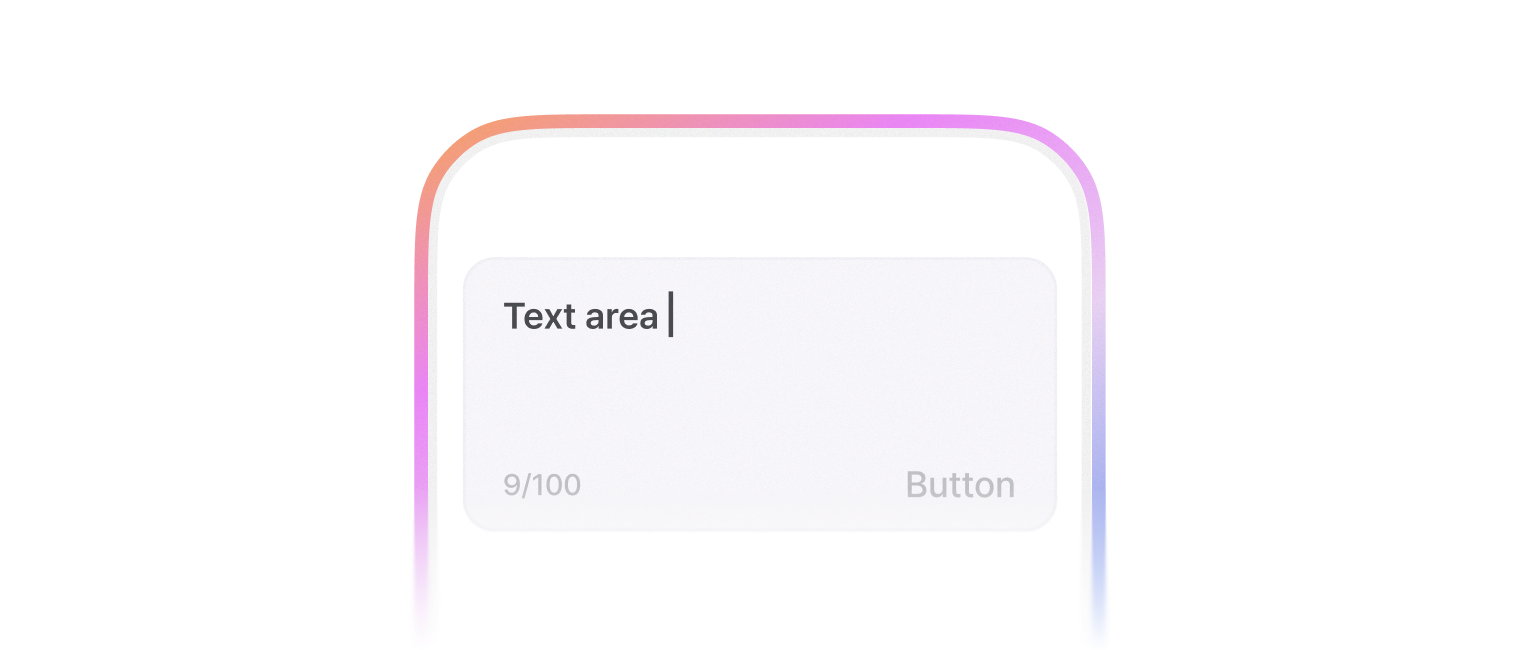
TextArea 는 입력한 텍스트에 따라 자동으로 높이가 늘어나는 컴포넌트입니다.
import { TextArea } from '@montage-ui/core';

const Demo = () => {
  return (
    <TextArea width="25ch" placeholder="Basic text area" defaultValue="자동으로 높이가 계속해서 늘어나요." />
  )
}

export default Demo;minRows, maxRows prop 으로 최대 / 최소로 늘어나는 line 수를 정할 수 있습니다.
import { TextArea } from '@montage-ui/core';

const Demo = () => {
  return (
    <TextArea
      width="25ch"
      placeholder="Min/Max rows"
      minRows={3}
      maxRows={4} />
  )
}

export default Demo;validation 을 통해 여러 상태를 표현할 수 있습니다.
- default
- negative (
status="negative") - readOnly
- disabled
import { FlexBox, TextArea } from '@montage-ui/core';

const Demo = () => {
  return (
    <FlexBox gap="12px" flexDirection="column" alignItems="center" sx={{ width: '100%' }}>
      <TextArea width="25ch" placeholder="Default" />
      <TextArea width="25ch" placeholder="Invalid" status="negative" />
      <TextArea width="25ch" placeholder="Read Only" readOnly />
      <TextArea width="25ch" placeholder="Disabled" disabled />
      <TextArea width="25ch" placeholder="Disabled" value="Disabled + Value" disabled />
    </FlexBox>
  )
}

export default Demo;Form과 관련된 컴포넌트와 함께 사용할 수 있습니다.
FormControlGroupFormControlFormControlFieldFormControlLabelFormControlMessageFormControlNegativeMessageFormControlPositiveMessageFormControlMessageAccessory
import { FlexBox, FormControl, FormControlField, FormControlLabel, FormControlMessage, FormControlNegativeMessage, TextArea } from '@montage-ui/core';

const Demo = () => {
  return (
    <FlexBox gap="12px" flexDirection="column" alignItems="center" sx={{ width: '100%' }}>
      <FormControl>
        <FormControlLabel required>Label</FormControlLabel>
        <FormControlField>
          <TextArea width="25ch" placeholder="Form control" />
        </FormControlField>
        <FormControlMessage>Helper Message</FormControlMessage>
      </FormControl>

      <FormControl>
        <FormControlLabel required>Label</FormControlLabel>
        <FormControlField>
          <TextArea width="25ch" placeholder="Invalid form control" status="negative" />
        </FormControlField>
        <FormControlNegativeMessage>Error Message</FormControlNegativeMessage>
      </FormControl>
    </FlexBox>
  )
}

export default Demo;2가지 사이즈를 제공합니다.
- large (default)
- medium
import { FlexBox, FormControl, FormControlField, FormControlLabel, FormControlMessage, TextArea } from '@montage-ui/core';

const Demo = () => {
  return (
    <FlexBox gap="12px" flexDirection="column" alignItems="center">
      <FormControl size="large">
        <FormControlLabel required>Large</FormControlLabel>
        <FormControlField>
          <TextArea width="25ch" placeholder="Large" size="large" />
        </FormControlField>
        <FormControlMessage>Helper Message</FormControlMessage>
      </FormControl>

      <FormControl size="medium">
        <FormControlLabel required variant="label2">Medium</FormControlLabel>
        <FormControlField>
          <TextArea width="25ch" placeholder="Medium" size="medium" />
        </FormControlField>
        <FormControlMessage>Helper Message</FormControlMessage>
      </FormControl>
    </FlexBox>
  )
}

export default Demo;leadingContent, trailingContent prop 을 사용하여 하단 앞/뒤에 컨텐츠를 추가할 수 있습니다.
해당 옵션을 사용할 때에는 TextAreaContent 로 감싸서 사용합니다.
icon-button 의 IconButton 은 size 를 지정하지 않으면 TextArea size(반응형 포함)에 맞는 size 와 interactionOverflow 가 자동으로 적용됩니다. IconButton 에 직접 지정하면 지정한 값이 우선합니다.
primary-icon-button 의 Button 은 size 를 지정하지 않으면 TextArea size(반응형 포함)에 맞는 size 가 자동으로 적용됩니다. Button 에 size 를 직접 지정하면 모든 breakpoint 에서 지정한 값이 우선합니다.
import { FlexBox, TextArea, TextAreaContent, ContentBadge, Button, IconButton, SegmentedControl, SegmentedControlItem } from '@montage-ui/core';
import { IconBlank, IconCopy, IconSendFill } from '@montage-ui/icon';

const Demo = () => {
  return (
    <FlexBox gap="12px" flexDirection="column" alignItems="center" sx={{ width: '100%' }}>
      <TextArea
        width="25ch"
        size="medium"
        placeholder="Icon"
        leadingContent={(
          <TextAreaContent variant="icon">
            <IconBlank />
          </TextAreaContent>
        )}
        trailingContent={(
          <TextAreaContent variant="icon">
            <IconBlank />
          </TextAreaContent>
        )}
      />
      <TextArea
        width="25ch"
        size="medium"
        placeholder="Primary icon button"
        leadingContent={(
          <TextAreaContent variant="primary-icon-button">
            <Button
              variant="solid"
              color="primary"
              iconOnly
            >
              <IconBlank />
            </Button>
          </TextAreaContent>
        )}
        trailingContent={(
          <TextAreaContent variant="primary-icon-button">
            <Button
              variant="solid"
              color="primary"
              iconOnly
            >
              <IconBlank />
            </Button>
          </TextAreaContent>
        )}
      />
      <TextArea
        width="25ch"
        size="medium"
        placeholder="Content badge"
        leadingContent={(
          <TextAreaContent variant="content-badge">
            <ContentBadge color="neutral">
              Badge
            </ContentBadge>
          </TextAreaContent>
        )}
        trailingContent={(
          <TextAreaContent variant="content-badge">
            <ContentBadge color="neutral">
              Badge
            </ContentBadge>
          </TextAreaContent>
        )}
      />
      <TextArea
        width="25ch"
        size="medium"
        placeholder="Button"
        leadingContent={(
          <TextAreaContent variant="button">
            <Button variant="outlined" color="assistive">
              Button
            </Button>
          </TextAreaContent>
        )}
        trailingContent={(
           <TextAreaContent variant="button">
            <Button variant="outlined" color="assistive">
              Button
            </Button>
          </TextAreaContent>
        )}
      />
      <TextArea
        width="25ch"
        size="medium"
        placeholder="Icon button"
        leadingContent={(
          <TextAreaContent variant="icon-button">
            <IconButton variant="normal">
              <IconCopy />
            </IconButton>
          </TextAreaContent>
        )}
        trailingContent={(
          <TextAreaContent variant="icon-button">
            <IconButton variant="normal">
              <IconSendFill />
            </IconButton>
          </TextAreaContent>
        )}
      />
      <TextArea
        width="25ch"
        size="medium"
        placeholder="Segmented control"
        leadingContent={(
          <TextAreaContent variant="segmented-control">
            <SegmentedControl iconOnly defaultValue="1">
              <SegmentedControlItem value="1" aria-label="Item 1">
                <IconBlank />
              </SegmentedControlItem>
              <SegmentedControlItem value="2" aria-label="Item 2">
                <IconBlank />
              </SegmentedControlItem>
            </SegmentedControl>
          </TextAreaContent>
        )}
        trailingContent={(
          <TextAreaContent variant="segmented-control">
            <SegmentedControl iconOnly defaultValue="1">
              <SegmentedControlItem value="1" aria-label="Item 1">
                <IconBlank />
              </SegmentedControlItem>
              <SegmentedControlItem value="2" aria-label="Item 2">
                <IconBlank />
              </SegmentedControlItem>
            </SegmentedControl>
          </TextAreaContent>
        )}
      />
    </FlexBox>
  )
}

export default Demo;import { FlexBox, TextArea, TextAreaContent, ContentBadge, Button, IconButton, SegmentedControl, SegmentedControlItem } from '@montage-ui/core';
import { IconBlank, IconCopy, IconSendFill } from '@montage-ui/icon';
const Demo = () => {
return (
<FlexBox gap="12px" flexDirection="column" alignItems="center" sx={{ width: '100%' }}>
<TextArea
width="25ch"
placeholder="Icon"
leadingContent={(
<TextAreaContent variant="icon">
<IconBlank />
</TextAreaContent>
)}
trailingContent={(
<TextAreaContent variant="icon">
<IconBlank />
</TextAreaContent>
)}
/>
<TextArea
width="25ch"
placeholder="Primary icon button"
leadingContent={(
<TextAreaContent variant="primary-icon-button">
<Button
variant="solid"
color="primary"
iconOnly
>
<IconBlank />
</Button>
</TextAreaContent>
)}
trailingContent={(
<TextAreaContent variant="primary-icon-button">
<Button
variant="solid"
color="primary"
iconOnly
>
<IconBlank />
</Button>
</TextAreaContent>
)}
/>
<TextArea
width="25ch"
placeholder="Content badge"
leadingContent={(
<TextAreaContent variant="content-badge">
<ContentBadge color="neutral">
Badge
</ContentBadge>
</TextAreaContent>
)}
trailingContent={(
<TextAreaContent variant="content-badge">
<ContentBadge color="neutral">
Badge
</ContentBadge>
</TextAreaContent>
)}
/>
<TextArea
width="25ch"
size="large"
placeholder="Button"
leadingContent={(
<TextAreaContent variant="button">
<Button variant="outlined" color="assistive">
Button
</Button>
</TextAreaContent>
)}
trailingContent={(
<TextAreaContent variant="button">
<Button variant="outlined" color="assistive">
Button
</Button>
</TextAreaContent>
)}
/>
<TextArea
width="25ch"
placeholder="Icon button"
leadingContent={(
<TextAreaContent variant="icon-button">
<IconButton variant="normal">
<IconCopy />
</IconButton>
</TextAreaContent>
)}
trailingContent={(
<TextAreaContent variant="icon-button">
<IconButton variant="normal">
<IconSendFill />
</IconButton>
</TextAreaContent>
)}
/>
<TextArea
width="25ch"
placeholder="Segmented control"
leadingContent={(
<TextAreaContent variant="segmented-control">
<SegmentedControl iconOnly defaultValue="1">
<SegmentedControlItem value="1" aria-label="Item 1">
<IconBlank />
</SegmentedControlItem>
<SegmentedControlItem value="2" aria-label="Item 2">
<IconBlank />
</SegmentedControlItem>
</SegmentedControl>
</TextAreaContent>
)}
trailingContent={(
<TextAreaContent variant="segmented-control">
<SegmentedControl iconOnly defaultValue="1">
<SegmentedControlItem value="1" aria-label="Item 1">
<IconBlank />
</SegmentedControlItem>
<SegmentedControlItem value="2" aria-label="Item 2">
<IconBlank />
</SegmentedControlItem>
</SegmentedControl>
</TextAreaContent>
)}
/>
</FlexBox>
)
}
export default Demo;기본적으로 비제어 컴포넌트로 동작합니다.
value, onChange prop 을 사용하면 제어 컴포넌트로 동작합니다.
제어 컴포넌트와 비제어 컴포넌트는 React 공식 문서 를 참조해주세요.
import { FlexBox, TextArea } from '@montage-ui/core';
import { useState } from 'react';

const Demo = () => {
  const [value, setValue] = useState('');

  return (
    <FlexBox alignItems="center" flexDirection="column" gap="12px" sx={{ width: '100%' }}>
      <TextArea
        defaultValue="Uncontrolled"
        placeholder="Uncontrolled"
        width="25ch"
      />
      <TextArea
        value={value}
        onChange={(e) => setValue(e.target.value)}
        placeholder="Controlled"
        width="25ch"
      />
    </FlexBox>
  )
}

export default Demo;react-hook-form 과 유연하게 조합해서 사용할 수 있습니다.
import { Button, FlexBox, TextArea, FormControl, FormControlField, FormControlLabel, FormControlNegativeMessage, FormControlMessage, FormControlMessageAccessory } from '@montage-ui/core';
import { useForm, Controller } from 'react-hook-form';

const Demo = () => {
  const form = useForm({ defaultValues: { content: '' }});

  return (
    <FlexBox
      as="form"
      flexDirection="column"
      alignItems="center"
      justifyContent="center"
      gap="20px"
      onSubmit={form.handleSubmit((v) => alert(JSON.stringify(v)))}
    >
      <Controller
        control={form.control}
        name="content"
        rules={{
          required: {
            value: true,
            message: "필수 값입니다.",
          },
          maxLength: {
            value: 20,
            message: "최대 20자까지 입력할 수 있습니다.",
          }
        }}
        render={({ field, formState }) => (
          <FormControl>
            <FormControlLabel required>내용</FormControlLabel>

            <FormControlField>
              <TextArea
                {...field}
                placeholder="입력하세요."
                width="300px"
                status={Boolean(formState.errors.content) ? 'negative' : 'normal'}
              />
            </FormControlField>

            {!!formState.errors.content ? (
              <FormControlNegativeMessage accessory={<FormControlMessageAccessory length={field.value.length} maxLength={20} />}>{formState.errors.content?.message?.toString()}</FormControlNegativeMessage>
            ) : (
              <FormControlMessage accessory={<FormControlMessageAccessory length={field.value.length} maxLength={20} />}>내용을 입력하세요.</FormControlMessage>
            )}
          </FormControl>
        )}
      />

      <Button type="submit" fullWidth>제출</Button>
    </FlexBox>
  )
}

export default Demo;